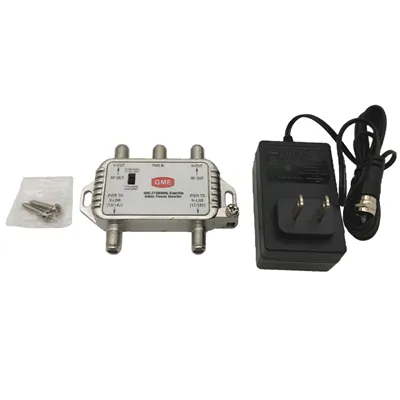
Hey there! As a provider of 3FE ONU devices, I often get asked about how to configure DHCP on these units. It's a crucial aspect of setting up your network, ensuring that devices can communicate effectively and access the resources they need. So, let's dive into it!
Understanding DHCP (Dynamic Host Configuration Protocol)
First off, what is DHCP? DHCP is a network protocol that automatically assigns IP addresses, subnet masks, default gateways, and other network configuration parameters to devices on a network. Instead of manually setting up each device, DHCP does it all for you, which is super convenient, especially in larger networks.
When it comes to our 3FE ONU, which stands for Optical Network Unit with three Fast Ethernet ports, getting DHCP configured correctly is key to making sure all your connected devices can get online effortlessly.
Prerequisites
Before you start the configuration process, there are a few things you'll need:
- A 3FE ONU device from our range. We offer high - quality units that are reliable and easy to work with.
- A computer with a web browser installed. You'll use this to access the ONU's configuration interface.
- A network cable to connect your computer to one of the Ethernet ports on the 3FE ONU.
- A working broadband connection to the 3FE ONU if you want to connect to the internet.
Step - by - Step Configuration Guide
Step 1: Connect to the 3FE ONU
Take your network cable and connect one end to an Ethernet port on your computer and the other end to one of the Fast Ethernet ports on the 3FE ONU. Make sure the ONU is powered on.
Step 2: Access the Configuration Interface
Open your web browser (I usually recommend Chrome or Firefox, but any browser should work fine). In the address bar, type in the IP address of the 3FE ONU. By default, it's often something like 192.168.1.1 or 192.168.0.1, but you can check the user manual for the exact address.
Once you've entered the address, hit Enter. You'll be prompted to enter a username and password. The default credentials are usually something like admin for both the username and password, but again, check the manual.
Step 3: Navigate to the DHCP Settings
After logging in, you'll be on the main dashboard of the configuration interface. Look for a section related to "Network" or "DHCP". It might have a different name depending on the firmware version of your ONU, but it's usually easy to find.
Step 4: Configure DHCP
Here, you'll see several options:
- Enable DHCP Server: This is the first thing you'll want to do. Check the box next to "Enable DHCP Server" to turn it on.
- IP Address Range: You need to set the range of IP addresses that the DHCP server will assign to devices. For example, you might set the start IP address to
192.168.1.100and the end IP address to192.168.1.200. This means that any device that requests an IP address from the DHCP server will get an address within this range. - Subnet Mask: The subnet mask defines the network prefix. A common subnet mask is
255.255.255.0, which is suitable for most home and small - office networks. - Default Gateway: Enter the IP address of your gateway device (usually your router). This is the device that connects your local network to the internet.
- DNS Servers: You can enter the IP addresses of your DNS servers here. You can use public DNS servers like Google's (
8.8.8.8and8.8.4.4) or your ISP's DNS servers.
Once you've filled in all these details, click the "Save" or "Apply" button.
Step 5: Test the DHCP Configuration
After saving the settings, disconnect and reconnect any device that was connected to the 3FE ONU. The device should automatically obtain a new IP address from the DHCP server. You can check the IP settings on your device to confirm. On a Windows computer, you can go to "Control Panel" > "Network and Internet" > "Network Connections", right - click on your network connection, and select "Status". Then click on "Details" to see the IP address, subnet mask, and other details.


Troubleshooting
If you're having trouble getting DHCP to work, here are a few things to check:
- Check the Configuration: Make sure you've entered all the settings correctly, especially the IP address range, subnet mask, default gateway, and DNS servers.
- Reboot the Devices: Sometimes, simply rebooting the 3FE ONU and your connected devices can solve the problem.
- Check for Firmware Updates: Outdated firmware can cause issues with DHCP configuration. Check our website for the latest firmware for your 3FE ONU and follow the instructions to update it.
Our Product Range
We're proud to offer a wide range of ONU devices, including the XG(S) - PON 10GE 4GE 1USB3.0 ONU, which is packed with features and provides high - speed connectivity. If you're looking for something more basic, our XPON ONU 1GE 1FE and 1GE 1FE models are also great options for smaller networks.
Contact Us for Purchase
If you're interested in our 3FE ONU devices or any of our other products, don't hesitate to reach out. We're here to help you with any questions you might have and guide you through the purchase process. Whether you're setting up a new network or upgrading an existing one, our devices are reliable and easy to configure.
References
- Cisco Networking Academy: Understanding DHCP.
- Juniper Networks Documentation: DHCP Configuration Basics.