In the modern digital era, a stable internet connection is not just a luxury; it's a necessity. As a leading 1GE ONT (Optical Network Terminal) supplier, we understand the frustration that comes with a loss of internet connectivity. This blog aims to provide you with a comprehensive guide on how to troubleshoot a 1GE ONT when it has no internet connection.
Understanding the Basics of 1GE ONT
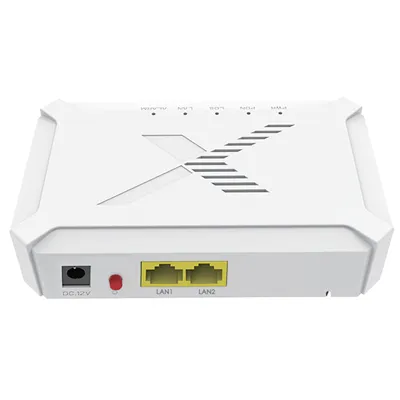
Before diving into the troubleshooting process, it's essential to have a basic understanding of what a 1GE ONT is. A 1GE ONT is a device that serves as the interface between the optical fiber network provided by the service provider and the user's local network. It converts the optical signals from the fiber into electrical signals that can be used by devices such as computers, routers, and smart TVs.
Initial Checks
The first step in troubleshooting is to perform some basic checks. These checks are simple and can often resolve the issue without the need for further investigation.
Power Check
Ensure that the ONT is properly powered on. Check if the power light on the ONT is illuminated. If not, verify that the power adapter is securely plugged into both the ONT and the power outlet. Try using a different power outlet to rule out any issues with the electrical supply.
Cable Connections
Inspect all the cables connected to the ONT. Make sure that the fiber optic cable is properly inserted into the ONT's optical port. A loose or damaged fiber cable can cause a loss of signal and result in no internet connection. Additionally, check the Ethernet cable connecting the ONT to your router or other devices. Ensure that it is firmly plugged in and not damaged.
Service Provider Status
Contact your internet service provider to check if there are any outages or maintenance activities in your area. Sometimes, the issue may not be with your ONT but with the service provider's network. You can usually find information about service outages on the provider's website or by calling their customer support.
ONT LED Indicators
Most 1GE ONTs are equipped with LED indicators that can provide valuable information about the device's status. Understanding these indicators can help you diagnose the problem more accurately.
Power LED
As mentioned earlier, the power LED should be illuminated when the ONT is powered on. If the power LED is off, check the power supply as described above.
Optical Link LED
The optical link LED indicates the status of the connection between the ONT and the optical fiber network. A solid green light usually means that the optical link is established and functioning properly. If the LED is off or blinking, it may indicate a problem with the fiber optic cable, the ONT's optical port, or the service provider's network.
Ethernet LED
The Ethernet LED shows the status of the Ethernet connection between the ONT and your router or other devices. A solid green light indicates a stable connection, while a blinking light may suggest data transfer. If the LED is off, check the Ethernet cable and ensure that it is properly connected.
Advanced Troubleshooting
If the initial checks and LED indicator analysis do not resolve the issue, you may need to perform some advanced troubleshooting steps.
ONT Configuration
Access the ONT's configuration interface through a web browser. You can usually find the IP address of the ONT in the device's user manual or by contacting your service provider. Log in using the default username and password, which are also provided in the manual. Check the configuration settings to ensure that they are correct. Pay special attention to the VLAN (Virtual Local Area Network) settings, which are used to separate different types of traffic on the network.
Router Configuration
If you are using a router, check its configuration settings as well. Make sure that the router is properly connected to the ONT and that the Wi-Fi settings are correct. You can try resetting the router to its factory default settings and then reconfiguring it.
Firmware Update
Check if there are any firmware updates available for your ONT. Firmware updates can fix bugs and improve the performance of the device. You can usually download the latest firmware from the manufacturer's website or through the ONT's configuration interface. Follow the instructions carefully when updating the firmware to avoid any issues.
Signal Strength
Use an optical power meter to measure the optical signal strength at the ONT's optical port. A weak signal can cause a loss of internet connection. If the signal strength is below the recommended level, contact your service provider to check the fiber optic network.
Common Issues and Solutions
Here are some common issues that can cause a 1GE ONT to have no internet connection and their corresponding solutions:
Fiber Optic Cable Damage
If the fiber optic cable is damaged, it can cause a loss of signal. Check the cable for any visible damage, such as cuts or bends. If you find any damage, replace the cable with a new one. Make sure to use a cable that is compatible with your ONT.
ONT Hardware Failure
In some cases, the ONT may have a hardware failure. If you have tried all the troubleshooting steps and the issue persists, it may be necessary to replace the ONT. Contact your service provider or the ONT manufacturer for assistance with replacing the device.

Service Provider Issues
As mentioned earlier, the problem may be with the service provider's network. Contact your service provider to report the issue and request assistance. They may need to perform some tests on their end to diagnose and resolve the problem.
Product Recommendations
As a 1GE ONT supplier, we offer a range of high-quality products that are designed to provide a stable and reliable internet connection. Here are some of our recommended products:
- XPON ONU 4GE VOIP: This product features four Ethernet ports and support for Voice over IP (VoIP) technology, making it ideal for both home and business use.
- XPON ONU 1GE VOIP: With a single Ethernet port and VoIP support, this ONU is a cost-effective solution for users who only need basic internet connectivity.
- GPON ONU 1GE 3FE 2VoIP: This product offers one Gigabit Ethernet port, three Fast Ethernet ports, and two VoIP ports, providing a versatile and powerful solution for a variety of applications.
Conclusion
Troubleshooting a 1GE ONT when it has no internet connection can be a challenging task, but by following the steps outlined in this blog, you should be able to identify and resolve the issue. Remember to start with the basic checks and gradually move on to the advanced troubleshooting steps if necessary. If you are still unable to resolve the issue, contact your service provider or the ONT manufacturer for further assistance.
If you are interested in purchasing a 1GE ONT or need more information about our products, please feel free to contact us. We are committed to providing our customers with the best possible products and services.
References
- ONT User Manuals
- Internet Service Provider Documentation
- Manufacturer's Technical Support Resources