

MoCA (Multimedia over Coax Alliance) adapters are a game-changer. They transform your home's existing coaxial cable TV wiring into a superhighway for your internet data, delivering a wired connection that's exceptionally stable and low-latency-perfect for gaming, 4K/8K streaming, and large file transfers.
Before You Begin: What You'll Need & The Core Idea
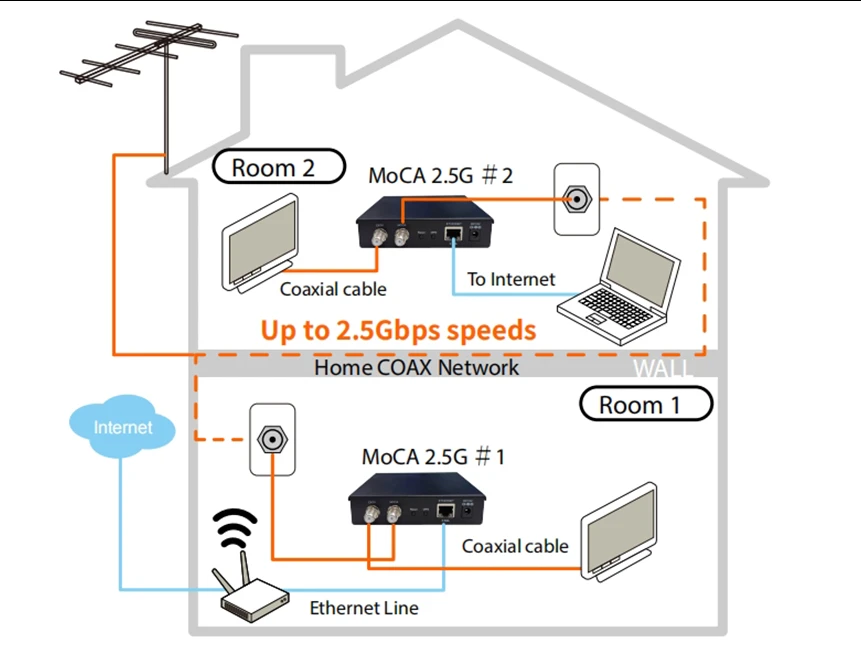
The Core Principle: You need at least two MoCA adapters to create a link. The first adapter connects to your router, and the second connects to your device (like a PC, console, or mesh node) in another room. They communicate with each other through the coaxial cables in your walls.
Essential Checklist:
MoCA Adapters: Two or more 2.5GbE MoCA adapters.
Coaxial Cables: One short coaxial cable for each adapter to connect it to the wall outlet.
Ethernet Cables: At least two Cat 5e or higher (Cat 6/6a is ideal) cables to connect the adapters to your router and devices.
PoE Filter: (Crucially Important!) A "Point of Entry" (PoE) MoCA filter. This small device is essential for security, performance, and preventing interference.
Verification: Ensure the coaxial wall outlets in the rooms you want to connect are active and interconnected. They should be part of the same internal cable network.
Step-by-Step Installation & Setup Guide
Step 1: Install the PoE Filter (The Most Important Step)
Locate where the main coaxial cable from your internet service provider enters your home. This is usually at a junction box, splitter, or cable modem location. Screw the PoE filter directly onto that input port before any splitters. This keeps your MoCA network secure and boosts signal strength inside your home.
Step 2: Connect Your First (Primary) Adapter
Place the first MoCA adapter near your main router.
Connect one end of a coaxial cable to the adapter's Coax In port and the other end to a nearby coaxial wall outlet.
Connect one Ethernet cable from the adapter's Ethernet port to an available LAN port on your router.
Plug the adapter into a power outlet.
Step 3: Connect Your Second (Secondary) Adapter
Take the second adapter to the room where you need internet.
Connect it to the coaxial wall outlet using another coaxial cable.
Connect an Ethernet cable from the adapter to the device you want to get online (e.g., a computer, gaming console, or a mesh WiFi satellite unit).
Plug it into power.
Step 4: Wait for Connection & Check Lights
Give the adapters 2-3 minutes to automatically discover each other and establish a secure link (via MoCA Protected Setup, usually enabled by default). Check the indicator lights on the adapters:
Power: Solid light.
Coax / MoCA: A solid light (sometimes blinking during establishment) indicates a successful MoCA connection over the coaxial wiring.
Ethernet: A solid or blinking light indicates an active link with your router or device.
Once both adapters show solid MoCA and Ethernet lights, your connection is live!
Critical Notes & Troubleshooting Tips
DOCSIS 3.1 Modem Interference: If you have a DOCSIS 3.1 cable modem (common for Gigabit plans), its frequency can overlap with MoCA, causing instability. Solution: Contact your Internet Service Provider. They can move your modem's upstream channel to a lower frequency (<300 MHz) or provide a compatible, MoCA-approved filter to resolve the conflict.
Incompatible Systems: MoCA is not compatible with satellite TV systems (like DIRECTV or Dish Network). It is designed for traditional cable (RF coaxial) systems.
Check Your Splitters: All coaxial splitters in your home's wiring must be MoCA-compliant, typically labeled with a frequency range up to 1675 MHz. Old splitters (only up to 1000 MHz) will block the signal.
Performance Bottlenecks:
Ensure your router, adapters, and end devices all have Gigabit (1 Gbps) or Multi-Gig (2.5 Gbps) Ethernet ports to unleash full speed.
For the fastest possible link, minimize the number of splitters between adapters. A direct coaxial path is best.


